Featured Products


Cart to Quote for Woocommerce
By : nitroweb Published on Thursday, August 18, 2016,09:50:30 in WordPress Plugins
The most complete quoting plugin for Woocommerce and WordPress. Max your sales NOW.
Videos
FRONTEND
BACKEND

How it works
FRONTEND User has the ability to add products in the quote list. It works like a cart (adding, removing, overview etc). After he has added all the desired products he can submit the list for quoting. At submission, a quote is created on the backend for the shop manager to review and the shop manager also receives an email notification. BACKEND 1st case: The shop manager can review the quotes that have been submitted by the customers. He can add new prices to each item for this quote and approve OR can cancel, decline etc. Many statuses are available. The customer can get notifications on the update status and then go ahead and buy the new quote as normal via woocommerce checkout, with all the changes and new prices that were made by the shop manager. 2nd case: You (the shop manager) get a call from your VIP customer asking you for a nice price on a long products list. You get on the backend, go to quotes, and create a new one with all the items he asked. Here you can tweak the prices and add some discount to make your VIP customer happy. After the quote is done, you can save it and your customer will receive an email notification with all the quote details, the prices he, exclusively gets and a link to review and accept the quote so he can checkout. NOTE: The cart and the checkout are functioning as normal. The “add to quote†button will not replace the “add to cart†button.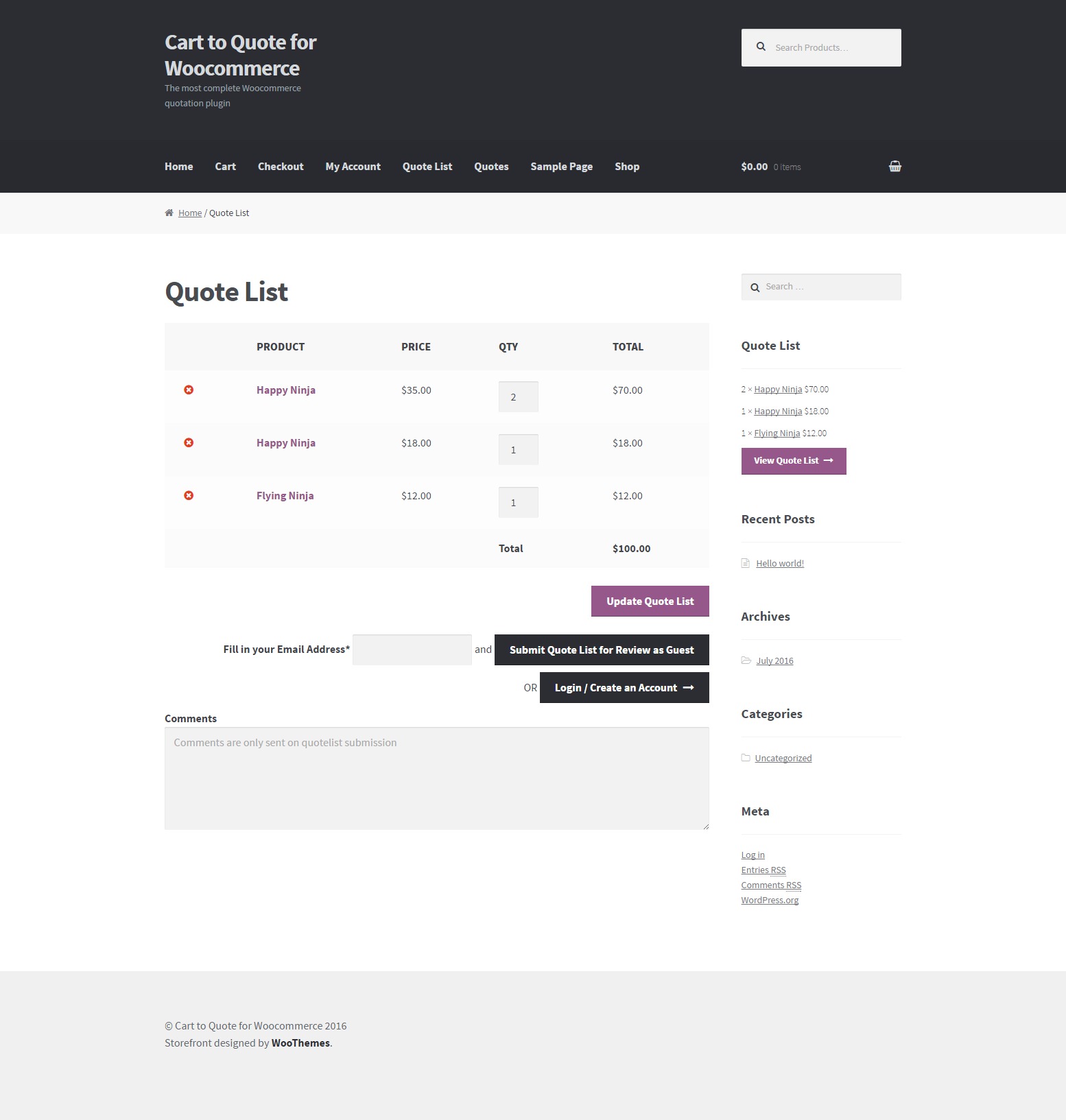
Features
Requirements
Usage
Plugin Settings
In order to setup the Cart to Quote for Woocommerce plugin navigate from your WordPress administration panel to “Woocommerce ? Settings†and click on the Cart to Quote Tab. Settings- Always prompt for log in: Disallow access to guests and prompt for log in even in single quotes.
- Require account: Allow access to the plugin functionality, but require login to submit quote list.
- Add quotes list on my account: Add the quotes list before the orders list on Woocommerce my account page.
- Remove add to quote button on product: Removes the “add to quote†button on the single product page.
- Remove add to quote button from product archives: Removes the “add to quote†button on the product archives list/loop page.
- Disallow user remarks: Users will not be able to add remarks (notes) to quotes, if you check this.
- Empty cart before adding quote items: The cart will be emptied before adding quote items to it when the user accepts a quote.
- Days to remember user’s quote list: How many days should the plugin remember the users quote list when the user is logged out (default is 100). Basically is the cookie life.
- New quote email notification: Here you may insert an email address to receive new quote requests notification, eg. the shop manager email address.
- Email user on frontend new quote: Email quote details to the user that is submitting the new quote from the frontend.
- Text before the quote list on the reminder email: Here you may enter any custom text that will be inserted before the quote list on the quote reminder email that is sent to the customer.
- Text after the quote list on the reminder email: Here you may enter any custom text that will be inserted after the quote list on the quote reminder email that is sent to the customer.
- Text before the quote list on the follow up email: Here you may enter any custom text that will be inserted before the quote list on the quote follow up email that is sent to the customer.
- Text after the quote list on the follow up email: Here you may enter any custom text that will be inserted after the quote list on the quote follow up email that is sent to the customer.
- PDF Logo: Drag and drop or “Add Media†to the editor in order to customize the logo on the PDF that is sent as attachment to the customer on the quote list creation.
- PDF Company Address: The address of your company that you may want to display on the PDF with the quote details.
- PDF Text Before Product’s Table: Any text that you want to be displayed on the PDF, before the table with the list of the quoted products.
- PDF Page Footer: Any text that you want to be displayed on the PDF footer.
- PDF Headers Background Color: Any color that you would like as background in the PDF (table) headers.
- PDF Links Color: Any color that you would like for any links on the PDF.
- PDF Style: Here you may enter any CSS rules to be applied to the PDF (do NOT include <style></style>).
- You are ready to go! * Save Changes *
Quotes Administration
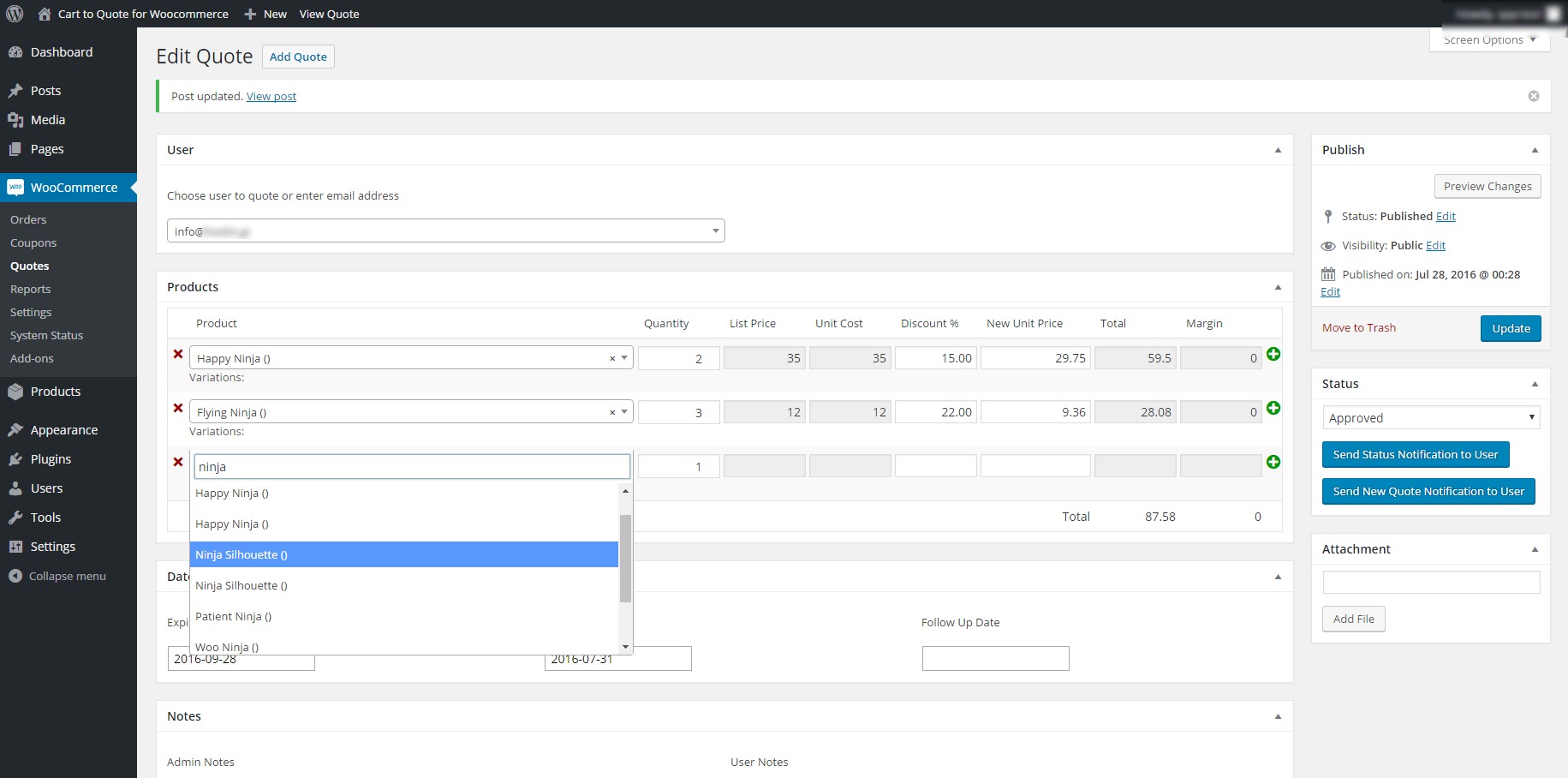
In order to create or edit any quote navigate from your WordPress administration panel to “Woocommerce ? Quotesâ€. The functionality is the same as any WordPress Custom Post Type. Quotes ManagementQuotes Frontend
Users, depending on your settings, will be able to add products in their quotes list and ask for quotes. They will be able to ask for a quote and see their quotes on the “My Account†page.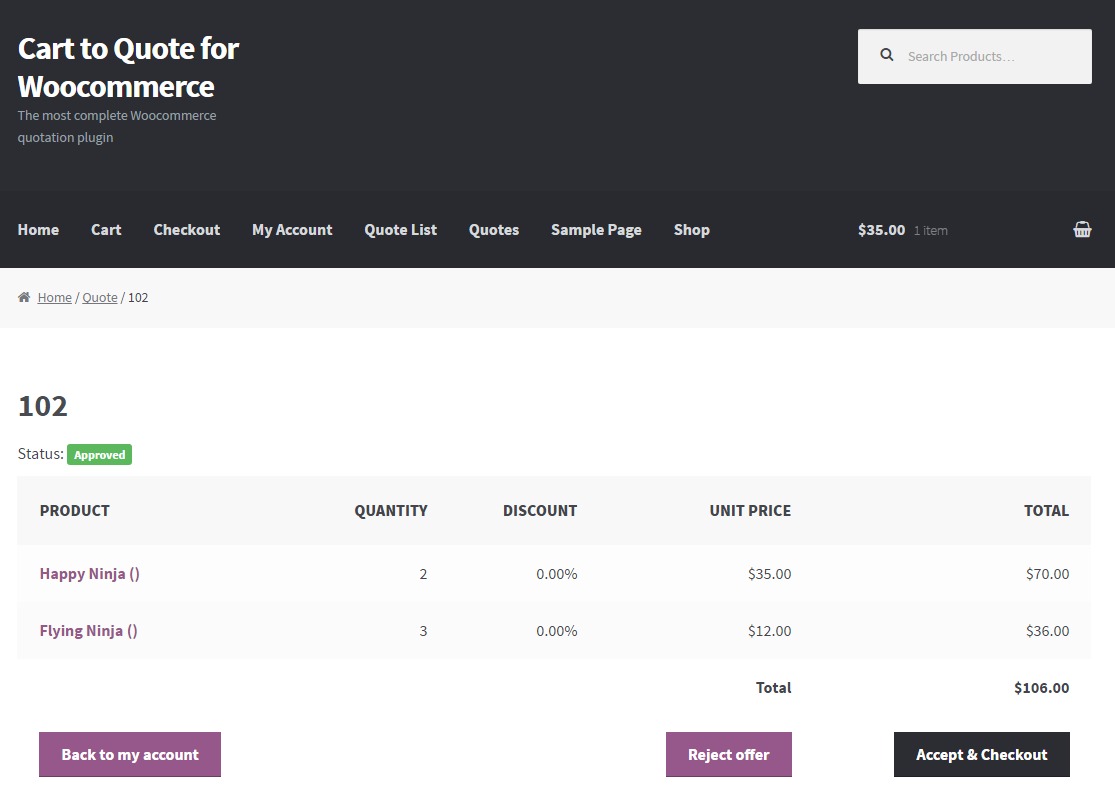
For Developers
Templating
You may override any of the plugin templates in the same way you do for woocommerce. Just copy the file in “your-theme-directory/c2q/â€. eg. if you want to override the single-quote.php and your theme is “storefront-child†then create a folder named “c2q†in â€/wp-content/themes/storefront-child/†and copy the file “single-quote.php†in there. Now you may edit it as preferred.Hooks
Many hooks are in place. Please search the code for a full list. A list is also available in the documentation.Frequently Asked Questions
- Are variable products supported? Yes, they are.
- Will it work with this (any not tested by us) plugin? Please ask!
- I need this change on the plugin. Will you do it for me? If this is a change that will benefilt all buyers, we may consider it. If it is a customization, then we are sorry, but this is not included on the support.
- How many quotes can it handle? This really depends on the server and site optimization.