Featured Products


Woocommerce Products List Pro
By : nitroweb Published on Friday, September 16, 2016,20:47:33 in WordPress Plugins

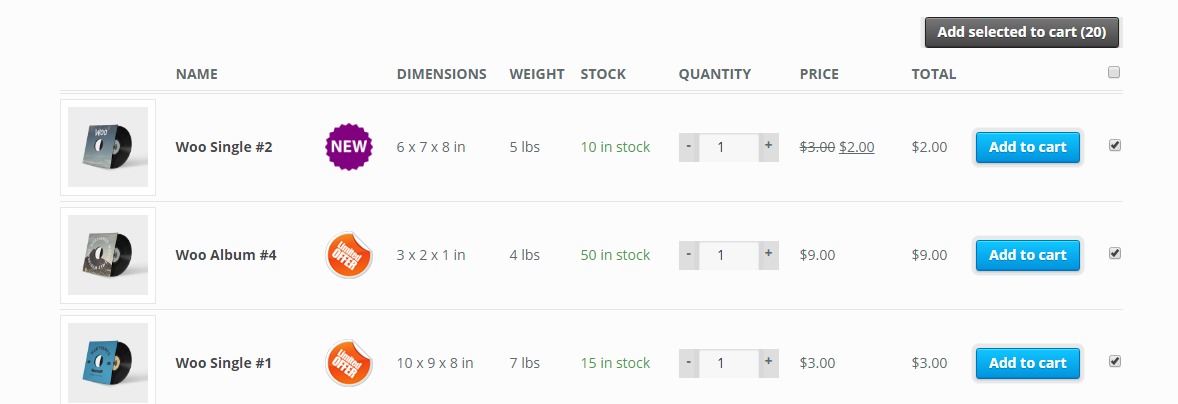
Woocommerce Products List PRO is a simple but powerful WordPress plugin to list all your Woocommerce products
Features
Requirements
Usage
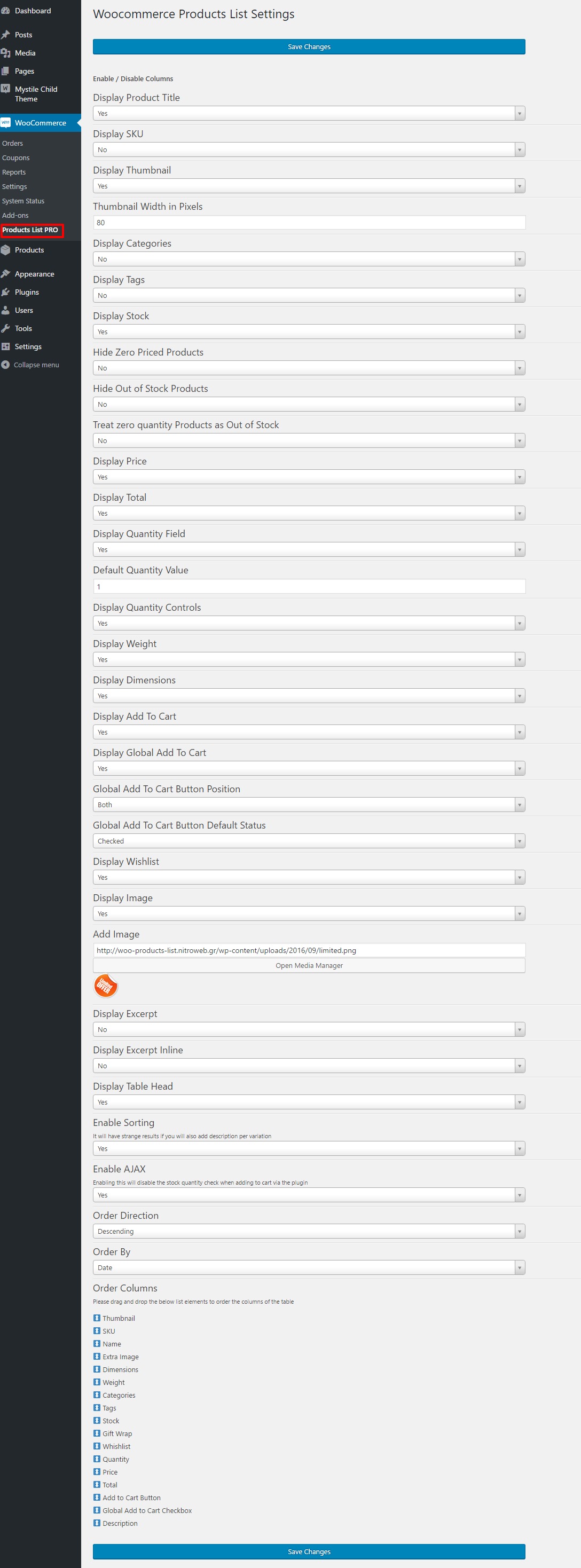
In order to use the Woocommerce Products List PRO plugin, please navigate from your WordPress administration panel to “Woocommerce ? Products List PRO“ Options- Display Product Title: Select “yes†to display the product title column or “no†to hide it.
- Display SKU: Select “yes†to display the product SKU column or “no†to hide it.
- Display Thumbnail: Select “yes†to display the thumbnail column or “no†to hide it.
- Thumbnail Width in Pixels: You may define the with of the thumbnail in pixels in this field
- Display Categories: Select “yes†to display a column with the categories that are assigned to the product or “no†to hide it.
- Display Tags: Select “yes†to display a column with the tags that are assigned to the product or “no†to hide it.
- Display Stock: Select “yes†to display the stock condition column or “no†to hide it.
- Hide Zero Priced Products: Select “yes†to skip empty or zero priced products or “no†to include them on the list.
- Hide Out of Stock Products: Select “yes†to skip out of stock products or “no†to include them on the list.
- Treat zero quantity Products as Out of Stock: Select “yes†to skip products that do not have a quantity set or “no†to include them on the list.
- Display Price: Select “yes†to display the price column or “no†to hide it.
- Display Total: Select “yes†to display the total per row column or “no†to hide it.
- Display Quantity Field: Select “yes†to display the quantity input field of the products to be added to cart column or “no†to hide it.
- Display Quantity Controls: Select “yes†to display -/+ buttons for the quantity field or no to hide them.
- Default Quantity Value: Enter any number to set as default quantity, default is 1.
- Display Weight: Select “yes†to display the weight of the products or “no†to hide it.
- Display Dimensions: Select “yes†to display the dimensions of the products or “no†to hide it.
- Display Add To Cart: Select “yes†to display the add to cart button column or “no†to hide it.
- Display Global Add To Cart: Select “yes†to display the global add to cart button or “no†to hide it.
- Global Add To Cart Button Position: Here you can choose where to place the global add to cart button.
- Global Add To Cart Button Default Status: You may set it to checked or un-checked when the list loads.
- Display Wishlist: Select “yes†to display the wishlist icon column or “no†to hide it.
- Display Gift Wrap Option: Select “yes†to display the gift wrap checkbox column or “no†to hide it, if you have the gift wrap plugin.
- Display Image: Select “yes†to display an extra image/sticker/icon column or “no†to hide it.
- Add Image: Upload the extra image/sticker/icon by clicking on the Open Media Manager button. The image will obey the thumb width settings.
- Display Excerpt: Select “yes†to display a excerpt of the product.
- Excerpt max length in characters: Enter the max number of characters in order to limit it. Leave blank for WP default.
- Display Excerpt Inline: Select where you would like to place the description.
- Display Table Head: Select “yes†to display table head or no to hide it. Hiding it will also remove the frontend sorting functionality.
- Enable Sorting: Select “yes†to enable sorting by clicking the table header on the frontend
- Enable Ajax: Select “yes†to enable AJAX for the “add to cart†button
- Order Direction: Select “ascending†or “descending†to set the default order direction for the list.
- Order By: Select the desired value to set the default element to order the products list.
- Order Columns: You may order the columns by drag-n-dropping the list elements.
- You are ready to go! * Save Changes *
 Shortcode
On your product page or anywhere were shortcodes are executed (eg. posts and pages), you may use the shortcode [wcplpro] . If you just put the shortcode then it will read the default settings of the plugin that you have just set via the admin settings panel.
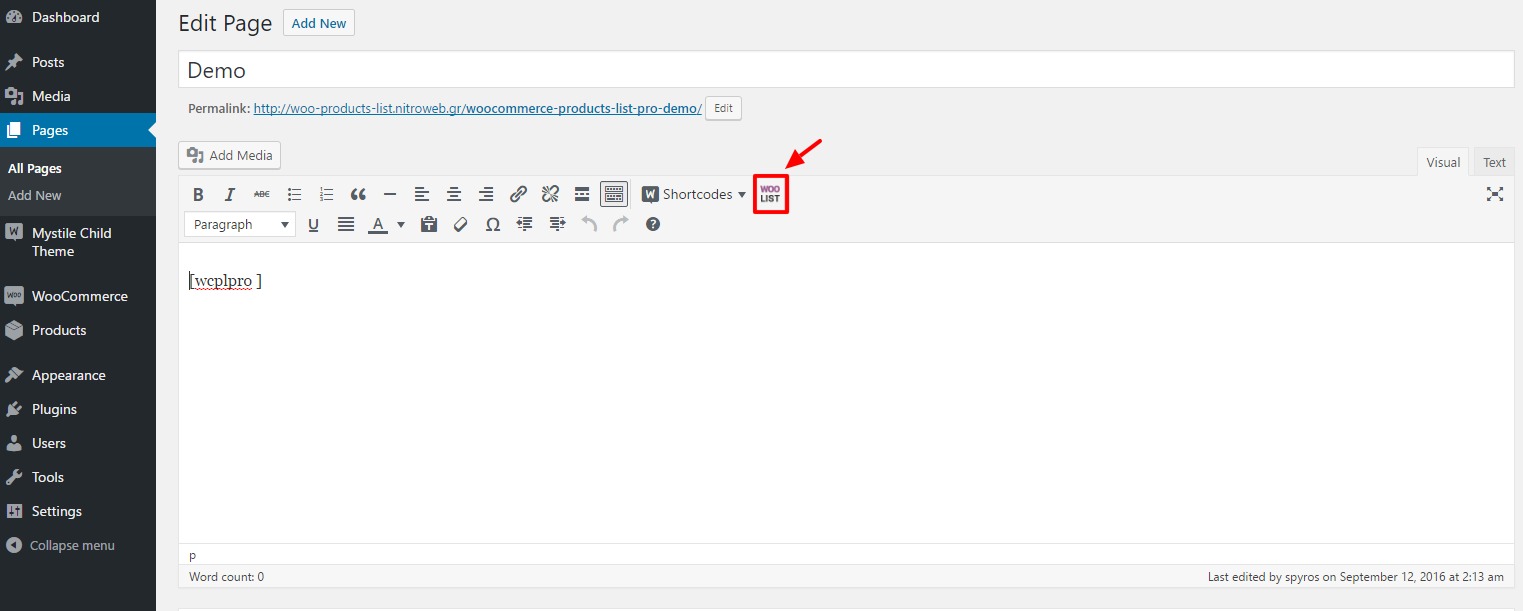
In order to customize the shortcode, it is strongly recommended to use the “WOO List†icon that is now available on the WP Editor.
Shortcode
On your product page or anywhere were shortcodes are executed (eg. posts and pages), you may use the shortcode [wcplpro] . If you just put the shortcode then it will read the default settings of the plugin that you have just set via the admin settings panel.
In order to customize the shortcode, it is strongly recommended to use the “WOO List†icon that is now available on the WP Editor.However, you may also enter the shortcode manually by using any of the following attributes (respectively to the above options):
 On all attributes, setting it to “1†equals to “yes†and “0†equals to “noâ€, when yes or no apply as a possible options. Here is an example:
[wcplpro keyword="woo ninja" thumb=1 thumb_size=150 stock=1 offer=0 qty=1 default_qty=4 ajax=0]As you may notice we have not set the cart, wishlist etc. attributes, hence the shortcode will do as we have set via the plugin’s settings panel Guide to some special shortocde attributes keyword: This is a free text attribute. The shortcode will do a search for the term you entered.
categories_exc: Comma separated categories IDs that you want its products’ to be excluded form the list.
categories_inc: Comma separated categories IDs that you want products from these categories only to be excluded to the list.
tag_exc: Same as categories but for excluding product tags
tag_inc: Same as categories but for restricting to specific product tags only
posts_inc: Enter comma separated products IDs (no spaces), to only include those products in the list
posts_exc: Enter comma separated products IDs (no spaces), to exclude those products from the list
thumb_size: This will take a number only and will be used as pixels
image: It has to be a full URL to the image
globalposition: Available values are “bottomâ€, “top†and “bothâ€
desc: This will display the excerpt or not. Again 0 and 1 are the available options
order_direction: Available values are “asc†for ascending and “desc†for descending
orderby: Available values are “dateâ€, “titleâ€, “_priceâ€, “_sale_priceâ€, “_regular_priceâ€, “_skuâ€, “_weightâ€, “_lengthâ€, “_widthâ€, “_stockâ€, “total_salesâ€, “_stock_statusâ€, “_wc_average_ratingâ€
date: You can use this to display products only from specific year, month or day, eg. 2016 will display only products that were added in 2016 and 2016/09 will display products added on September of 2016 etc.
For Developers
Many hooks are in place. Please search the code for a full list. Below are some of them with examples. Filters You can add alter the css class of the link to the full image for each variation with the filter “vartable_thumb_class_filterâ€, eg.
add_filter( 'wcplpro_thumb_class_filter', 'my_wcplpro_custom_img_class');
function my_wcplpro_custom_img_class($class) {
  $class = $class.' myclass anotherclass';
  return ($class);
}
The Woocommerce “single_add_to_cart_text†filter is in place. Please refer to Woocommerce documentation.
Actions
You may add your own css class for the table with “wcplpro_table_classâ€, eg.
add_action( 'wcplpro_table_class', 'my_wcplpro_table_class');
function my_wcplpro_table_class($class) {
  $class = ' table-hover table-striped ';
  return ($class);
}
You can add text before and after the table with, “wcplpro_before_table†and “wcplpro_after_tableâ€, eg.
add_action( 'wcplpro_before_table', 'my_wcplpro_before_table');
function my_wcplpro_before_table($text) {
  $text = 'This text ';
  $text .= 'will go before the table';
  echo $text;
}
add_action( 'wcplpro_after_table', 'my_wcplpro_after_table');
function my_wcplpro_after_table($text) {
  $text = 'This text ';
  $text .= 'will go after the table';
  echo $text;
}
Frequently Asked Questions
- Can I list all Woocommerce products filtered by category? Yes, you can via “categories_inc†shortcode attribute.
- Can I list all Woocommerce products filtered by tag? Yes, you can via “tag_inc†shortcode attribute.
- Can I put this anywhere in my site? Yes, you can via the shortcode, if the field where you put it is able to execute shortcodes.
- Can I exclude products from the list? Yes, you can via the product edit screen. Please select “Yes†at the option “Remove this product from Woocomerce Products List†under the product’s general settings tab.
- Are variable products supported? Variable products will be listed, however the “add to cart†button will not be available for them. Instead there will be a “read more†button that will link to the product single page.
- What about stock check and AJAX? By enabling AJAX, this will disable the stock quantity check when adding to cart via the plugin.