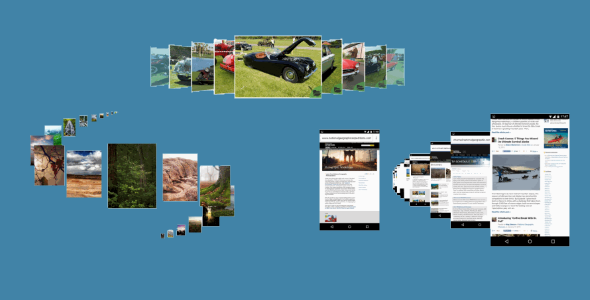
See it in action here
Key features
Responsive layout
Display images and video
Optional animation choices
Configurable columns
Ongoing support & updates
Kwik photation installation
It may be silly to point out but Kwik photation is a jQuery plugin so jQuery is a requirement

OK so how do you get started?
After downloading Kwik photation upload the files to your host server. Logically stylesheet CSS files go into your css folder, and the javascript files into your js folder.
The Kwik photation download is structured like this:
kwik_photation_v1_0_0
CSS
kwik-photation.css
JS
jquery.min.js
kwik-photation.js
jquery.waitforimages.js
masonry.pkgd.min.js
example.html
Copy-paste the stylesheet <link>’s into the <head> of your web page. Make sure they are in the following order:
< link rel=â€stylesheet†type=â€text/css†href=â€path_to/css/any other style sheets you currently useâ€>
< link rel=â€stylesheet†type=â€text/css†href=â€path_to/css/kwik-photation.cssâ€>
Add the JavaScript pages near the end of your pages, right before the closing </body> tag. Make sure they are in the following order:
< type=â€text/javascript†src=â€path_to/js/jquery.min.jsâ€></script>
< type=â€text/javascript†src=â€path_to/js/jquery.waitforimages.jsâ€></script>
< type=â€text/javascript†src=â€path_to/js/masonry.pkgd.min.jsâ€></script>
< type=â€text/javascript†src=â€path_to/js/any other JavaScript pages/jQuery plugins you currently useâ€></script>
< type=â€text/javascript†src=â€path_to/js/your site javascript page.jsâ€></script>
< type=â€text/javascript†src=â€path_to/js/kwik-photation.jsâ€></script>
And that’s it!
Now create the Kwik photation
To display your Kwik photation you need to create an HTML element and add it’s structure on your page – example:
<div id="kwik-gallery" class="kwik-gallery"></div>
NOTE: Kwik photation requires the class kwik-gallery.
You populate the Kwik photation gallery with configurable tiles like this:
<div class="kwik_gallery_item"></div>
There are 3 sizes for kwik_gallery_item tiles:
<div class="kwik_gallery_item kwik_gallery_item_lg"></div>
<div class="kwik_gallery_item kwik_gallery_item_md"></div>
<div class="kwik_gallery_item kwik_gallery_item_sm"></div>
Their sizes are relative to each other – kwik_gallery_item_lg being twice as large as kwik_gallery_item_md which is twice as large as kwik_gallery_item_sm
Each tile is then populated as follows:
<div class="kwik_gallery_carousel">
<br /><div class="kwik_gallery_flipper">
<br /><div class="kwik_gallery_front">
<br />A list of <img /> tags for the images you want in each tile
<br /></div>
<br /><div class="kwik_gallery_back">
<br /><div class="kwik_gallery_back_content">
<br />The text you want to display when a tile is flipped
<br /></div>
<br /></div>
<br /></div>
<br /></div>
Right lets’ add some amination to the Kwik photation
There are three types of animation you can add to each tile within your Kwik photation. They are added by applying ‘data’ tags to the kwik_gallery_item holder
- data-kwik-animate – e.g. data-kwik-animate=â€true†– If set to false the tile will not animate
- data-kwik-flip – e.g. data-kwik-flip=â€true†– If set to false the tile will not flip but will still animate
- data-kwik-direction – e.g. data-kwik-direction=â€left†– The default direction is Slide Up
An animated kwik_gallery_item tag would look like this
<div class="kwik_gallery_item" data-kwik-animate="true" data-kwik-flip="true" data-kwik-direction="left" ></div>
To sum up a basic structure for a Kwik photation with one tile
<div id="kwik-gallery" class="kwik-gallery"></div>
<br /><div class="kwik_gallery_item" data-kwik-animate="true" data-kwik-flip="true" data-kwik-direction="left">
<br /><div class="kwik_gallery_carousel">
<br /><div class="kwik_gallery_flipper">
<br /><div class="kwik_gallery_front">
<br /><img src="image_folder_url/some_image_name/>
<br /><img src="image_folder_url/some_image_name/>
<br /><img src="image_folder_url/some_image_name/>
<br /></div>
<br /><div class="kwik_gallery_back">
<br /><div class="kwik_gallery_back_content">
<br />The text you want to display when a tile is flipped
<br /></div>
<br /></div>
<br /></div>
<br /></div>
<br /></div>
<br /></div>
Share This Product